Tech Connect Day 3 - Time to go home - Deploying SP Central - Networking - Part 4

NTC Tech Connect 2026 is a wrap, and I'll create a summary post of the event later on. But first, let's wrap up SP Central by talking about the networking aspects of external access for the tenants.
Make sure that you read my other posts in the series.
 Jonas Högman
 Jonas Högman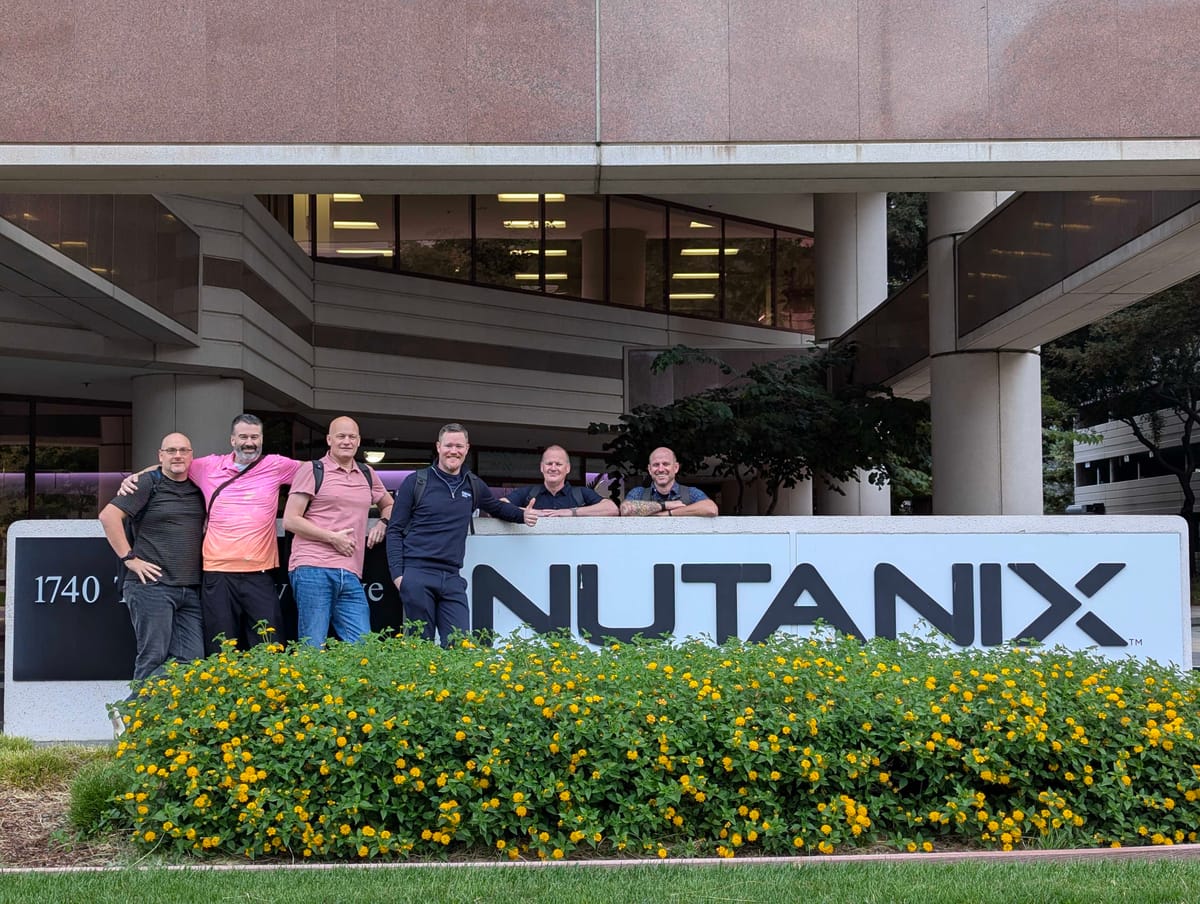
 Jonas Högman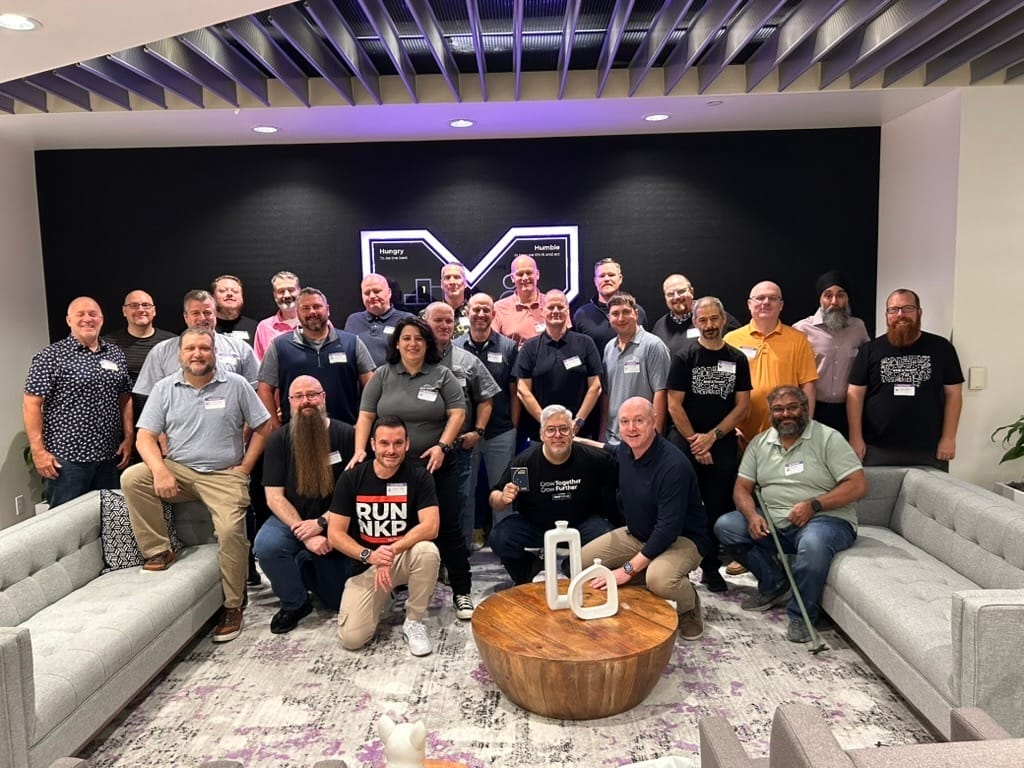
First of all, we need to clarify the terminology, because this was the biggest showstopper for me in understanding the networking bits and pieces.
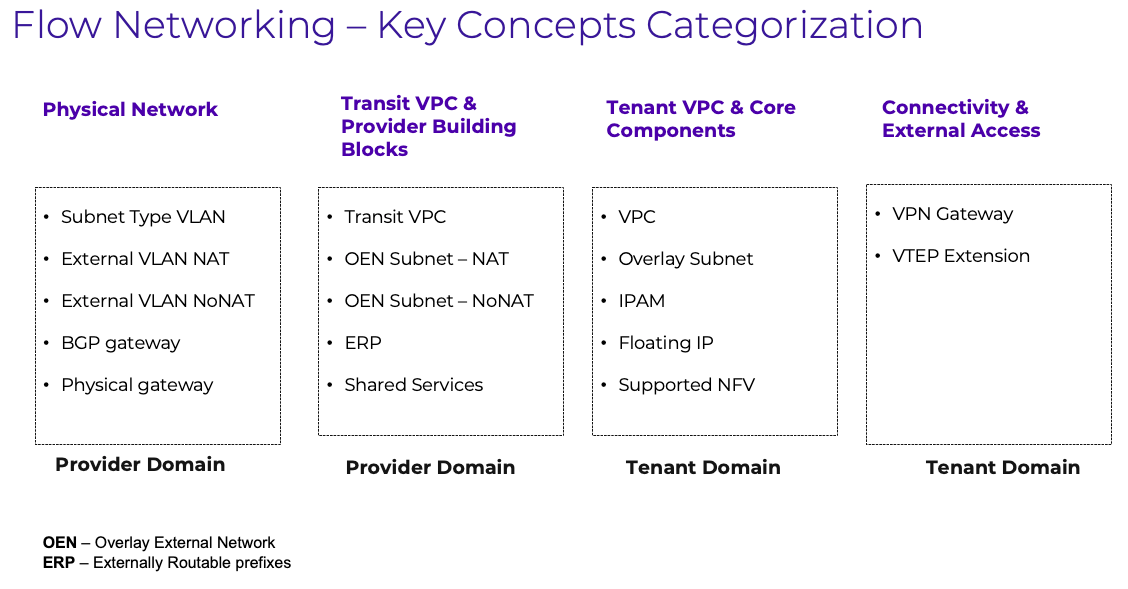
Workload VPC
Think of this as the tenant's virtual router and routing domain. It connects and routes traffic between the tenant's overlay subnets. This is a tenant-owned entity.
Transit VPC
Think of this as the provider's transit or edge router. It connects tenant workload VPCs (above) to shared services, provider networks, and external infrastructure. This is a provider-owned entity.
External subnet
A VLAN-backed connection between the Transit VPC and the physical provider network. This is a provider-owned entity.
Overlay External Network (OEN)
A logical transit link between a workload VPC (tenant router) and a Transit VPC (provider router). VMs cannot connect directly to an OEN.
Connected Overlay
A routed VM subnet connected to a workload VPC. The tenant's VPC router owns its default gateway. This is a tenant-owned entity.
Disconnected Overlay
An isolated layer-2 VM network without a VPC gateway. A firewall VM, such as FortiGate or pfSense or whatever virtual firewall you want to have, normally owns the gateway and routing.
Externally Routable Prefix (ERP)
An IP prefix routed to workloads behind a workload VPC. It can provide directly routed addresses without Flow NAT.
Floating IP (FIP)
An external address mapped through 1:1 NAT to a VM's private address. It does not create an additional NIC inside the VM.
Different tenant connection models
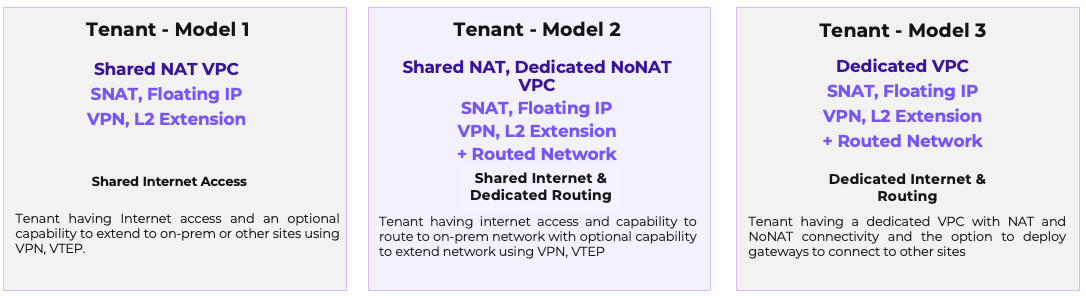
There are three different models to take into account. Two modes where the tenants share the same provider-owned VPC router and external subnet, and one where you set up dedicated external subnets and provider VPC routers for the tenant.
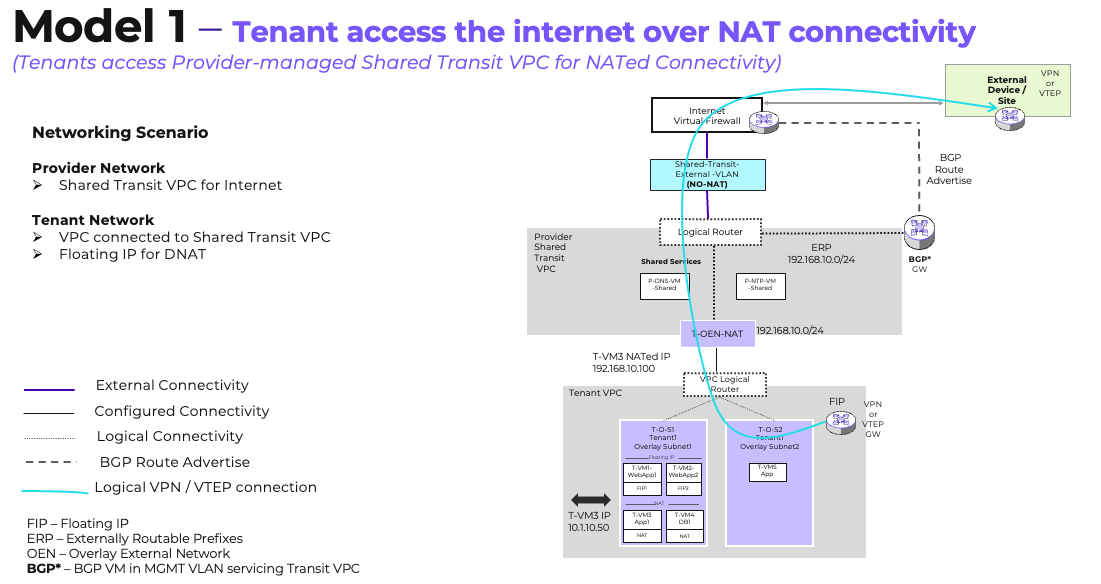
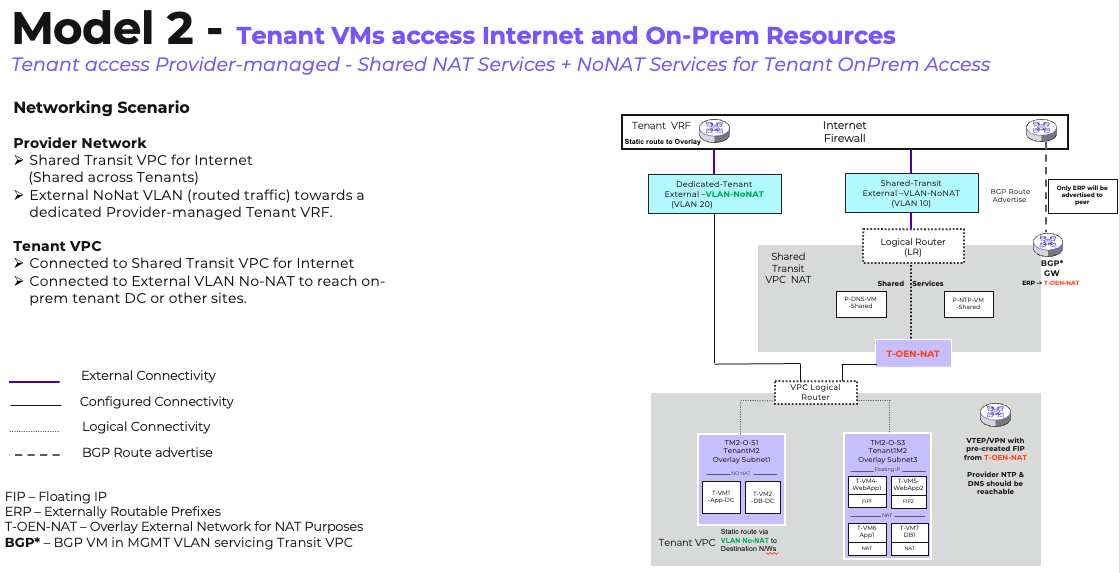
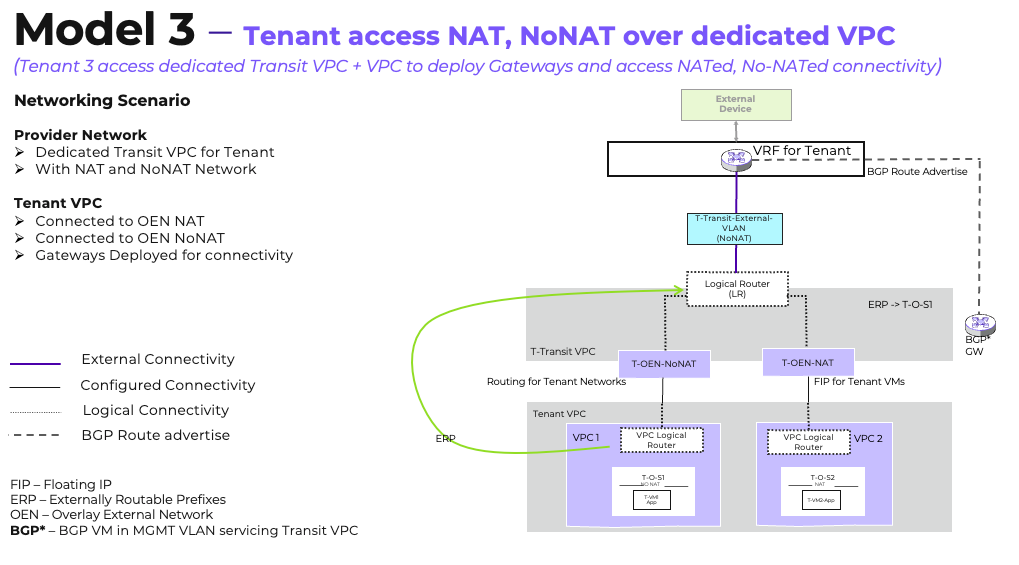
So now, when we have that sorted out, and the different models and the terminology translated into something that I can understand, I'll show you how I set it up in my lab.
First, I have a pfSense virtual firewall running in the environment for this lab. And that's because it's open source and has the most functionality to test the networking features out 😄
The pfSense is connected to an Internet VLAN (WAN) with a public IP address assigned to it.
The pfSense's internal network interface (LAN) is VLAN ID 1337 and has the internal IP address 10.13.37.1/24.
So first, to demonstrate the tenant model using a VPC with no-NAT and routing, let's look at how we set this up in this lab/demo. Then we'll move on to how the Floating IP and NAT features work.
NO-NAT Scenario
First I'll provide you with the networking diagram for this whole thing and how to create all the Nutanix constructs needed in the GUI. :)
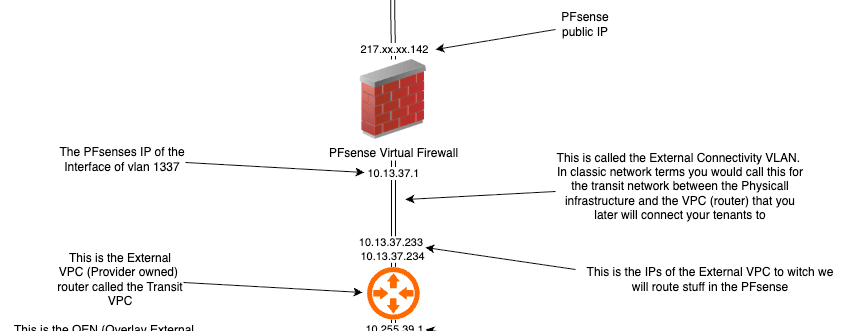
This is the networking diagram for the demo tenant's "NO NAT" scenario.
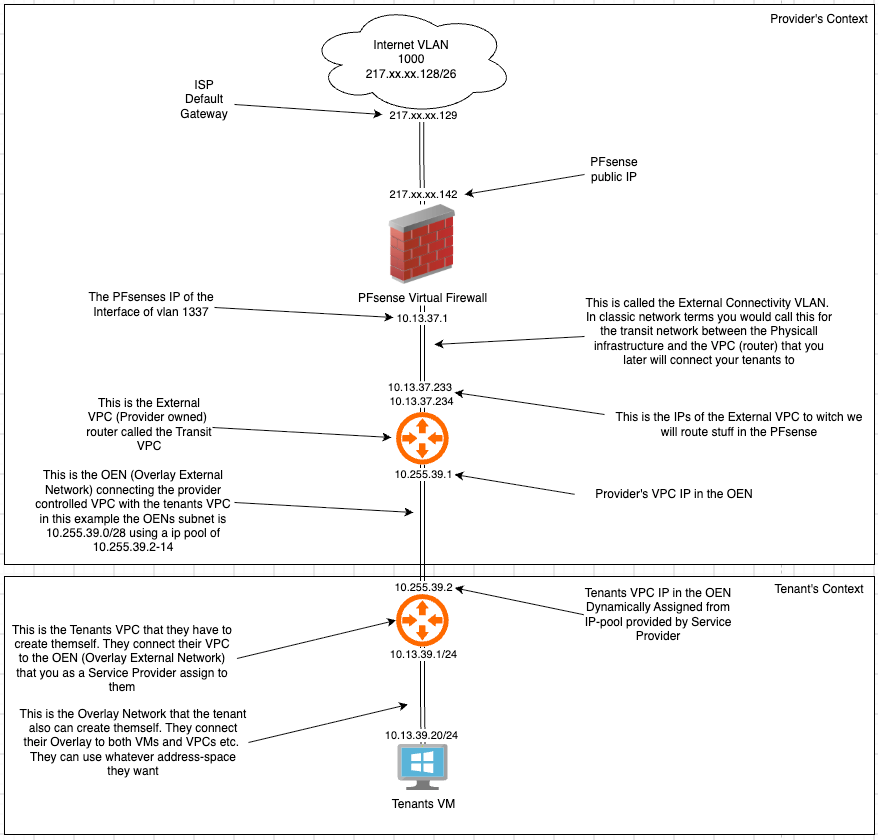
From the top down, this translates into these constructs within Nutanix.
First, this is the configuration of the pfSense's network:

- One NIC (WAN) in the Internet VLAN
- One NIC (LAN) in the External 1337 VLAN
This is the configuration of the External VLAN.
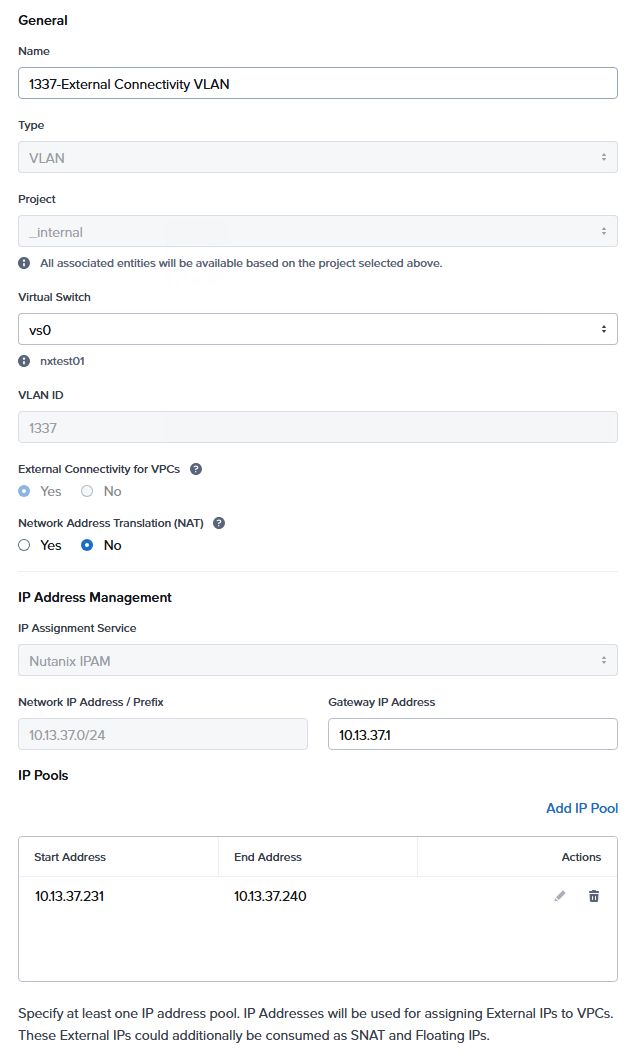
Then we create the Service Provider's VPC (router).
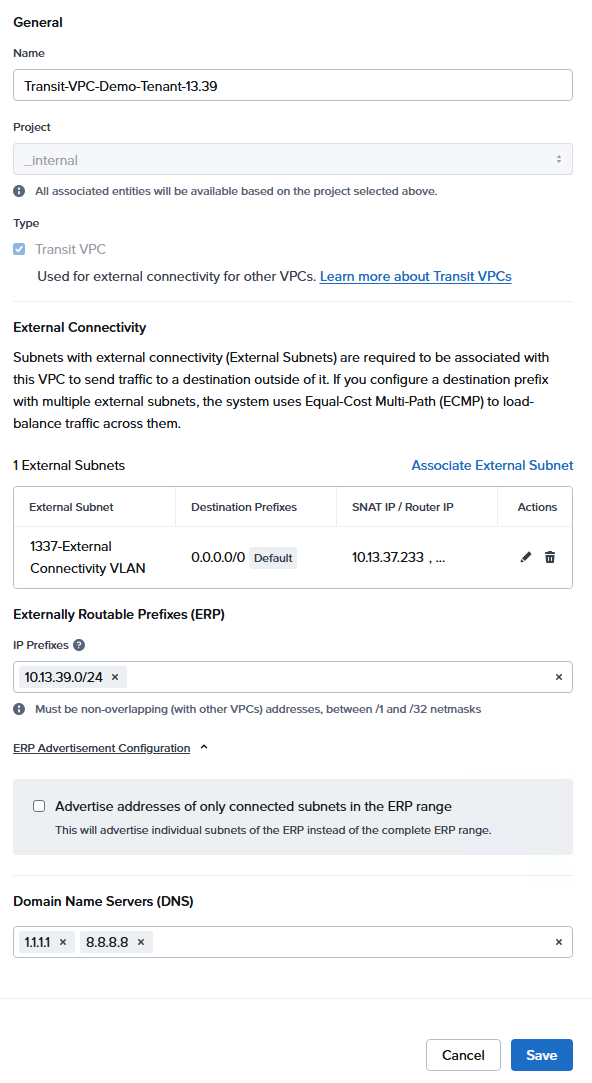
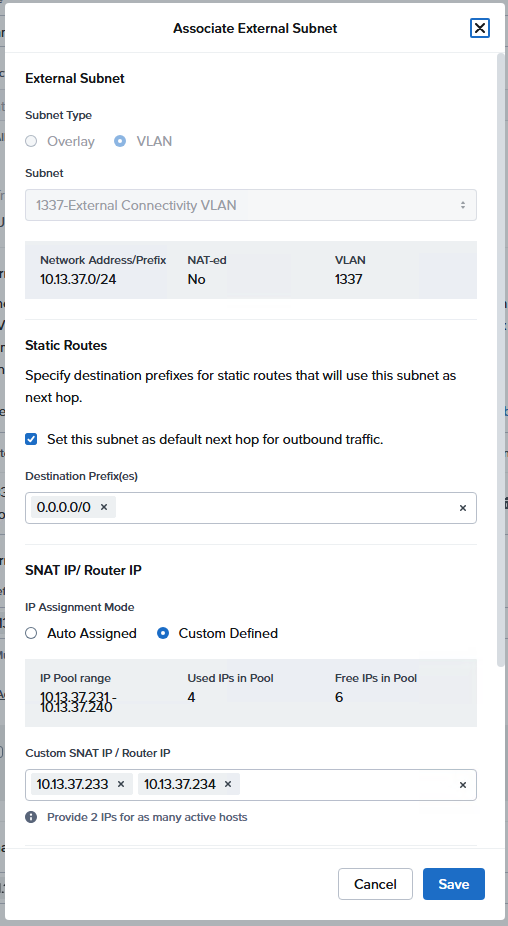
Then we associate it with the external connectivity VLAN of 1337. We give the VPC IPs in VLAN 1337 for the pfSense to be able to route stuff to it.
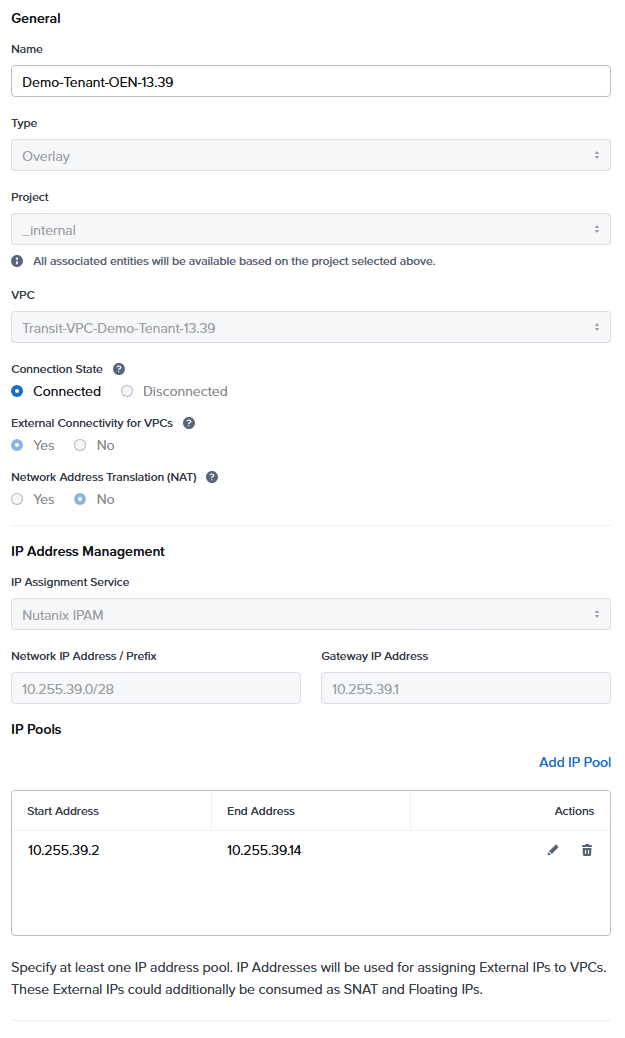
Then it's time to create the OEN. This is the configuration of the OEN (Overlay External Network), e.g. the link that will connect the tenant's VPC (router) to the Service Provider's VPC. Think of this as the virtual network cable between the tenant's router and the provider's router. As you can see, we connect it to the VPC we just created above.
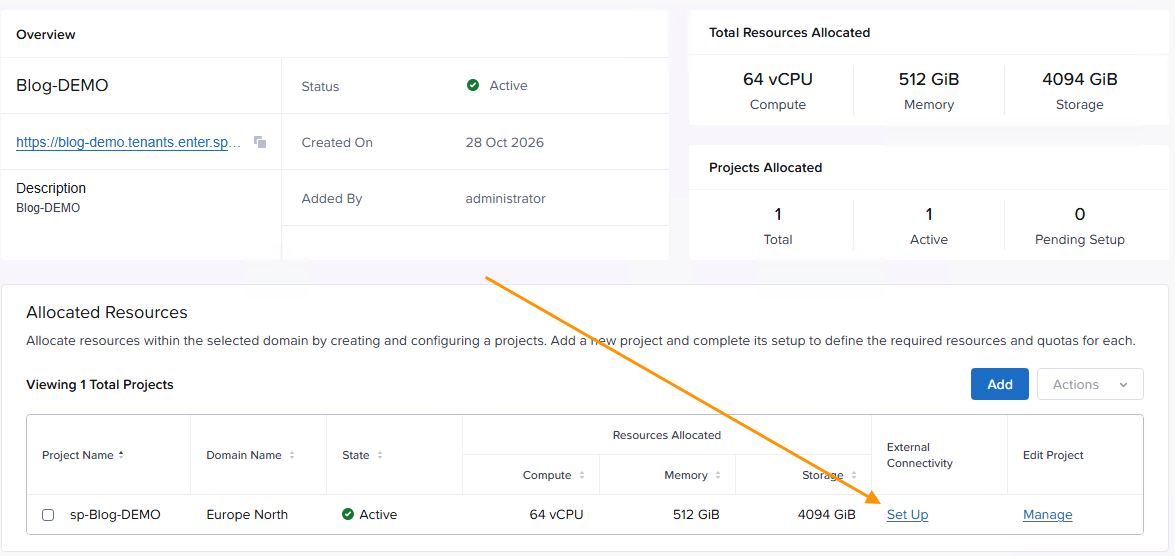
Now it's time to configure this in the tenant's context. In SP Central, go to the tenant and click Set up under the heading External Connectivity.
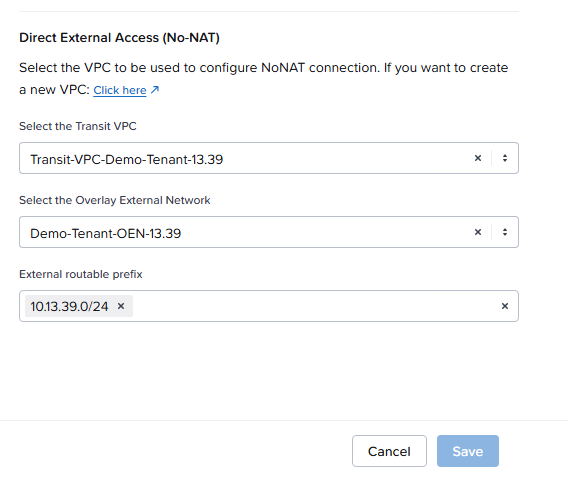
The above networking method is the "No NAT" setup. So we choose the Transit VPC we created and the OEN we created above, and we enter the externally routable prefix that we will assign to VMs. Click Save.
Then, log in as the tenant. Once logged in as the tenant, we need to create their VPC (router) that will connect them to the outside world. This is the step that the tenant needs to do themselves. Go to Network & Security -> Virtual Private Clouds.
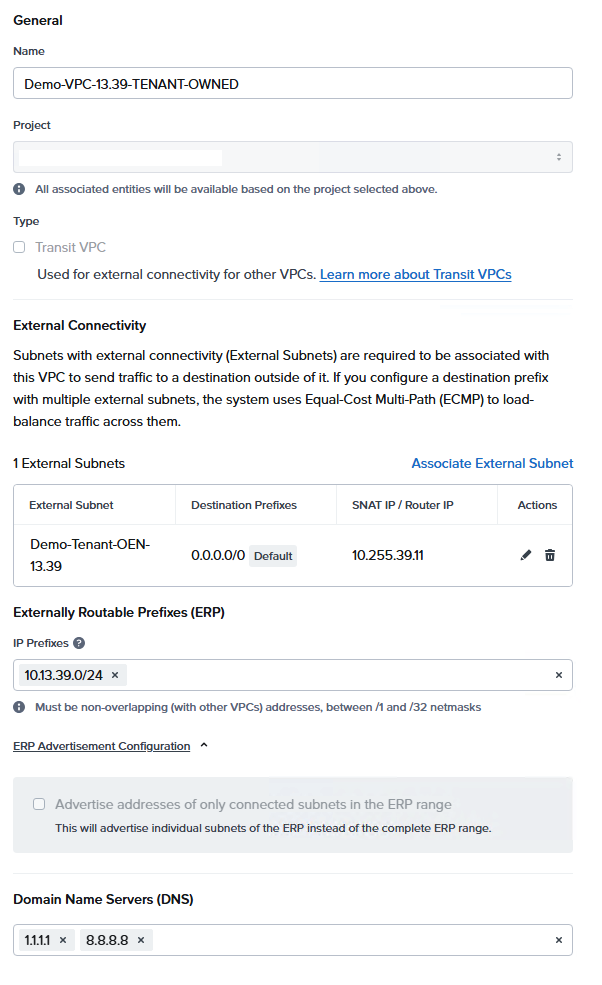
So now the tenant has created this router that is connected to the outside world through the Overlay External Network.
Now they need to create an overlay that they can connect to the VPC they just created. Go to Network & Security -> Subnets. We call it Overlay-Demo-NoNAT-39 and connect it to the VPC the tenant created above.
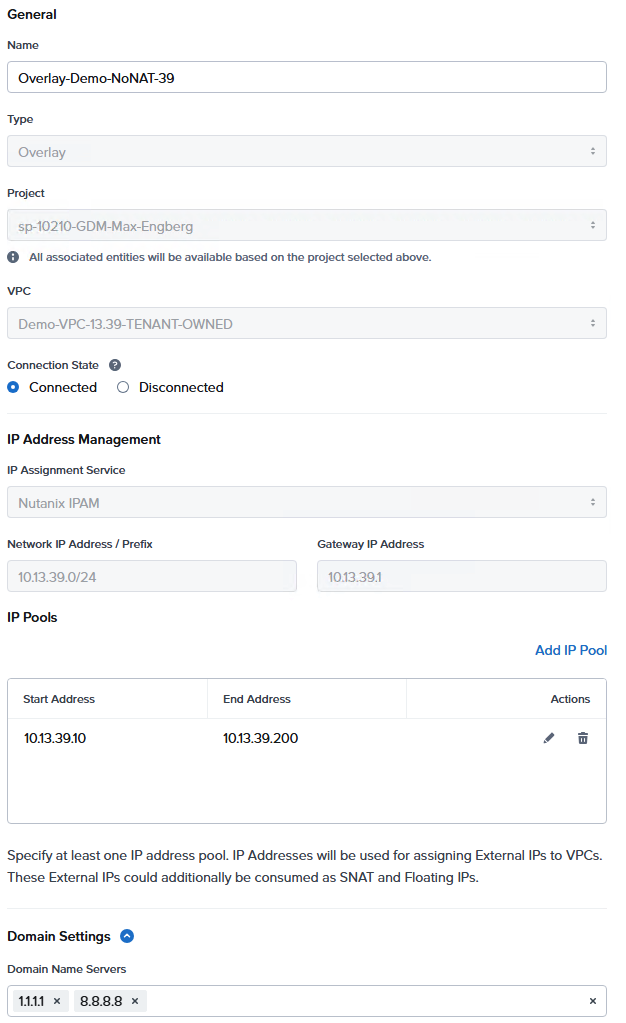
Then we create a Windows VM on this overlay. We connect the VM to the overlay we created above.
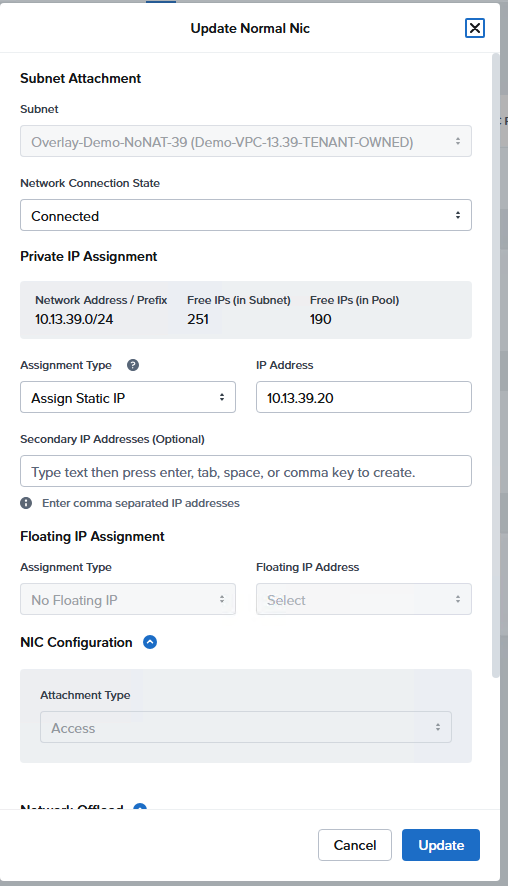
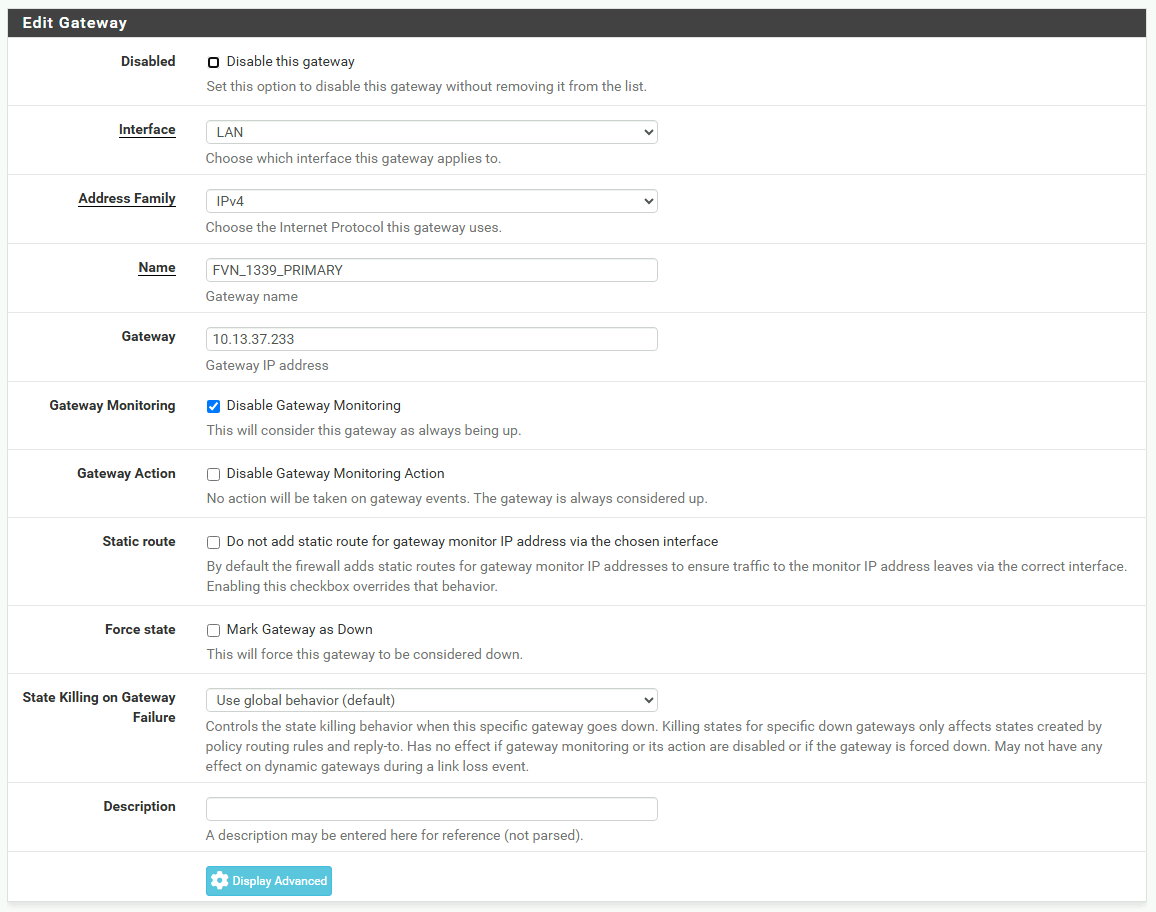
Now all that is done. Now we need to do some routing in our pfSense so that the requests will come in and out of it.
First we need to create a "gateway" that points to the Service Provider-owned VPC IP, in this case .233 or .234.
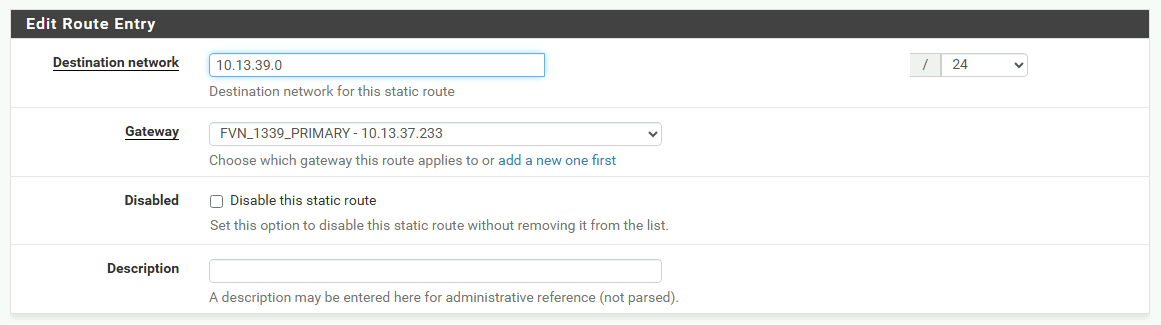
Then we create a static route to that IP.
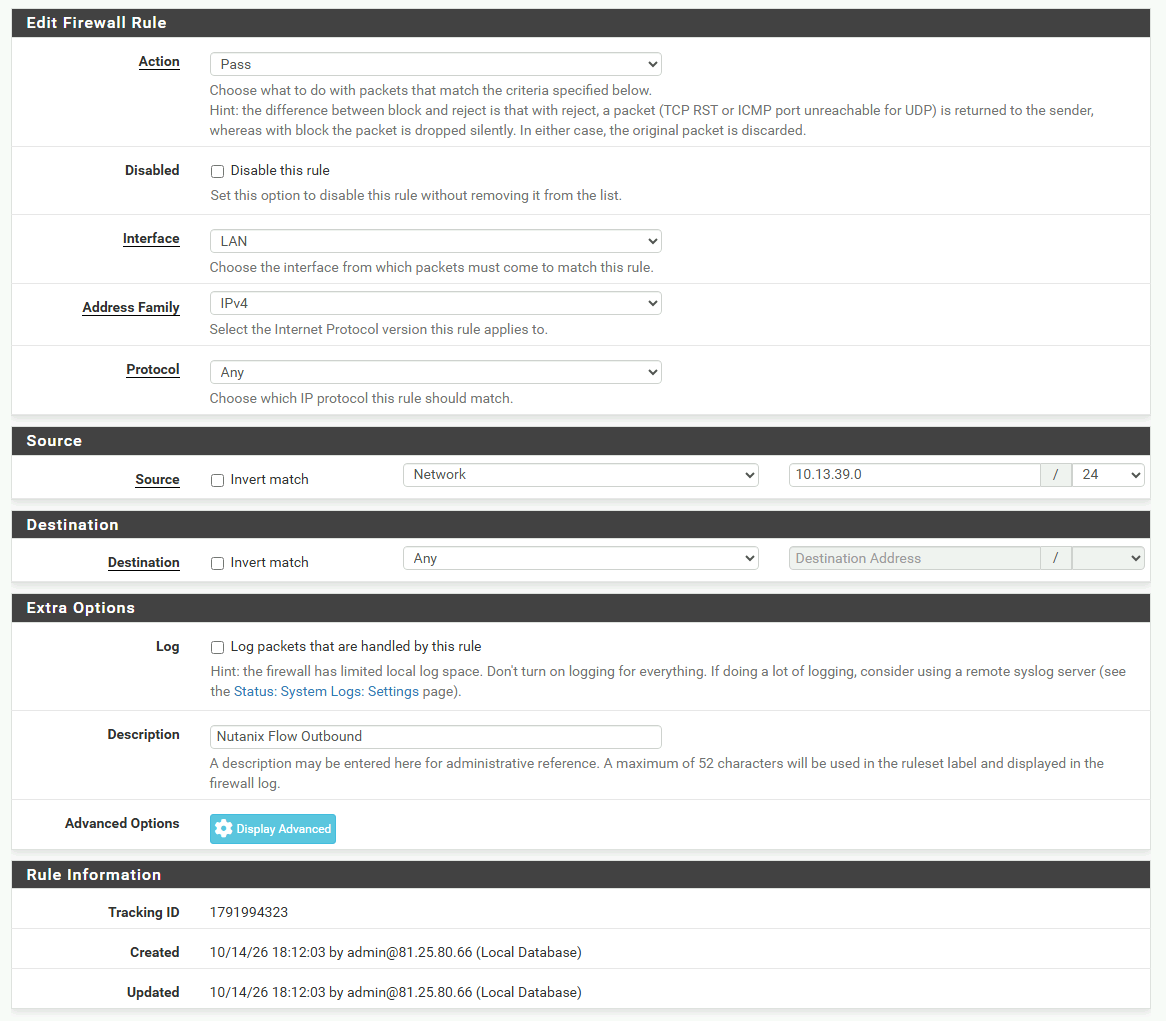
Then we create a firewall rule allowing the subnet 10.13.39.0/24 to access the Internet.
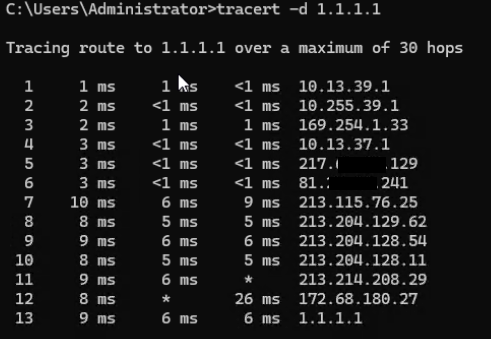
Once that's done, you can test if the Internet is reachable from the VM and do a traceroute to maybe 1.1.1.1 or some other entity on the Internet.
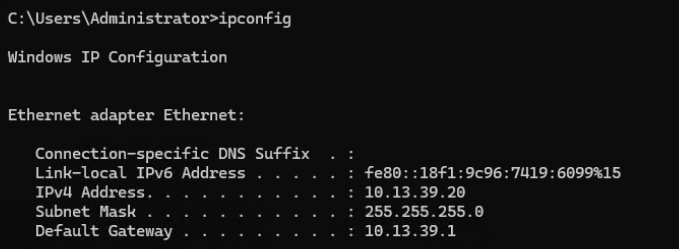
Also, we can open a port in pfSense and point it to the IP 10.13.39.20 and demonstrate that this no-NAT scenario by default does not filter anything.

Here I opened port 8444 and redirected it to port 80 on the VM in pfSense.
Jonass-MacBook-Pro:~ joho$ nc -zv 217.xx.xx.142 8444
Connection to 217.xx.xx.142 port 8444 [tcp/pcsync-http] succeeded!
The NAT Scenario with Floating IPs
So in this scenario the terminology used will be the same, but the constructs will be a little bit different.
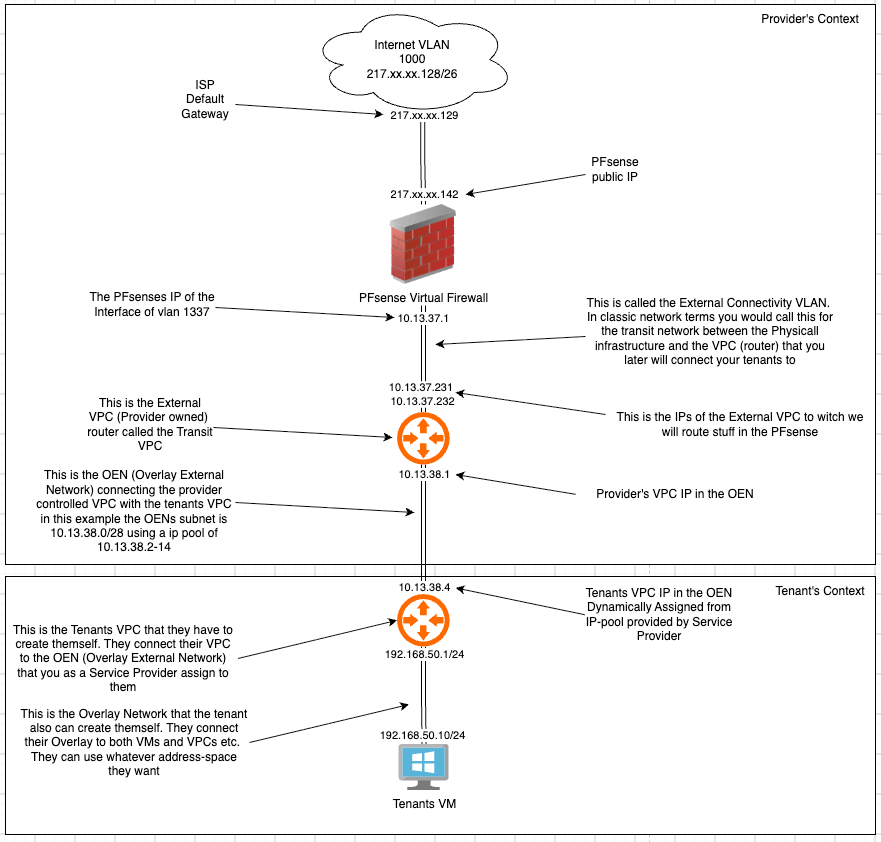
As you can see, the setup is pretty much the same. But the difference is that the OEN (Overlay External Network) connected to the Service Provider VPC (router) is the same as we will route in pfSense. In the other scenario it was just a "link net" in there. Now we entered the ERP (Externally Routable Prefix) directly in the OEN. Hope that makes sense :)
Let's see how this scenario changes the constructs that we create in Nutanix.
In Prism Central, let's first create the VPC that the Service Provider owns. And we connect it to the same External Subnet 1337 as before. That does not change.
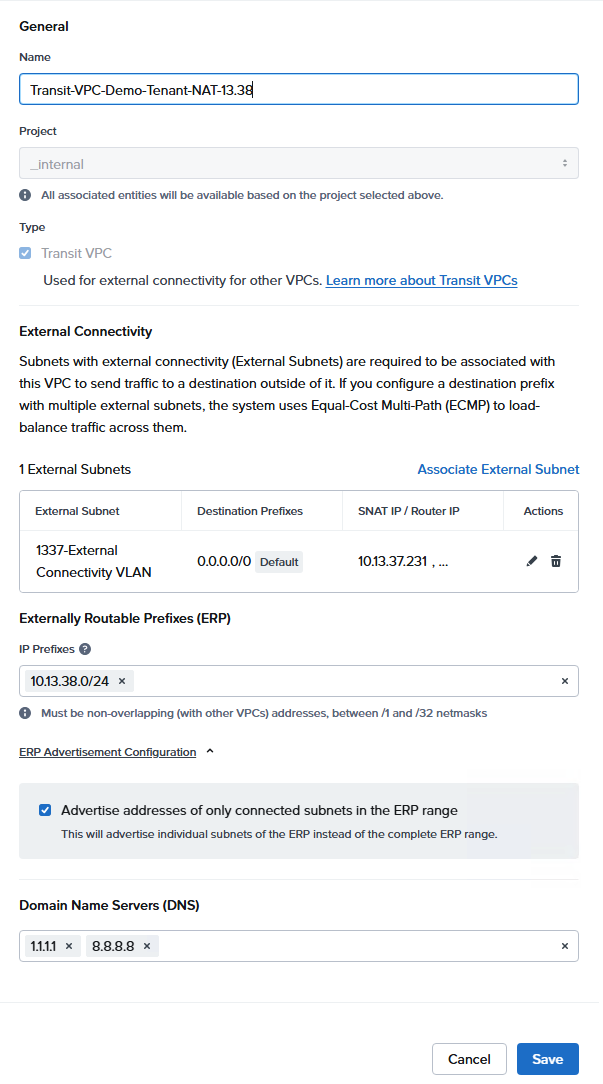
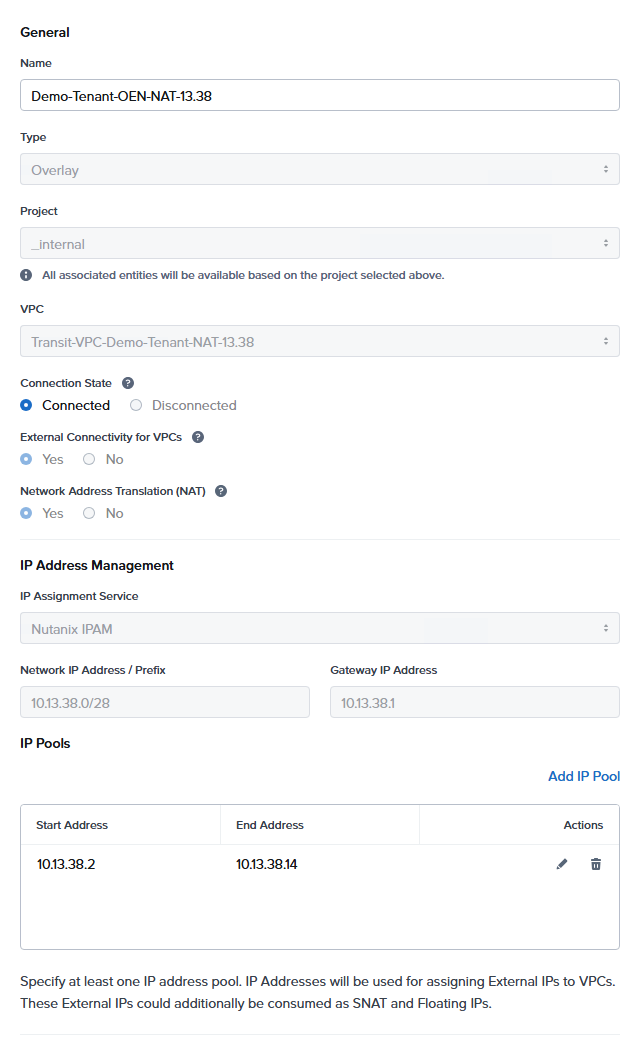
Then we create the OEN and configure it like this. Here is the difference: in the other one we chose No-NAT, now we choose NAT, and the other difference is that now we have the ERP as the IP address pool in the OEN.
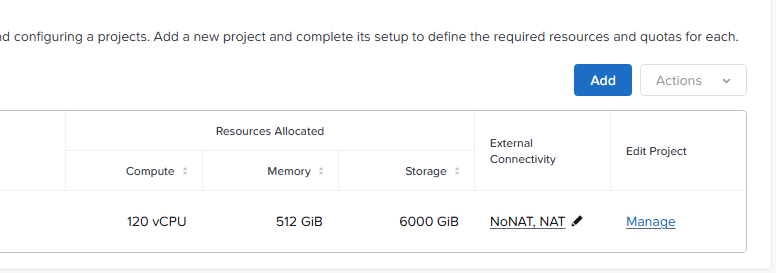
Then we need to assign this to the tenant. Go to SP Central and hit the pen in the tenant's External Connectivity section.
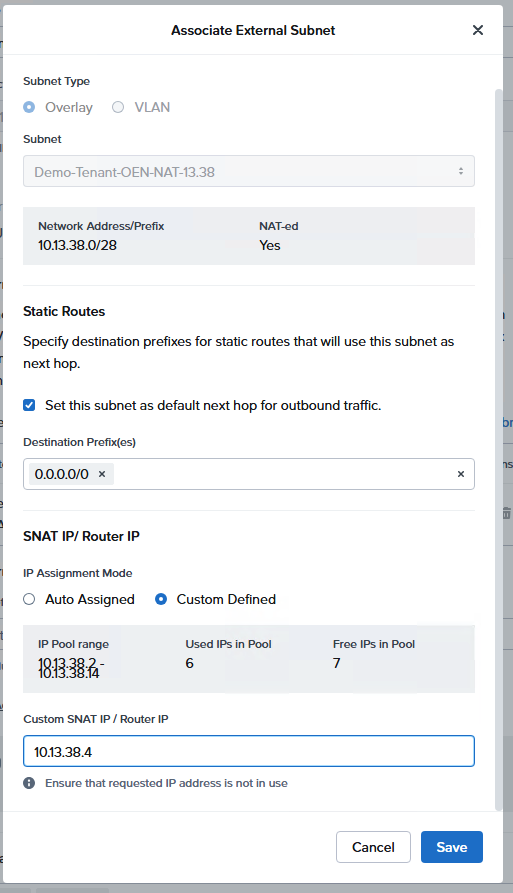
Configure our newly created VPC and OEN as the external access via NAT.
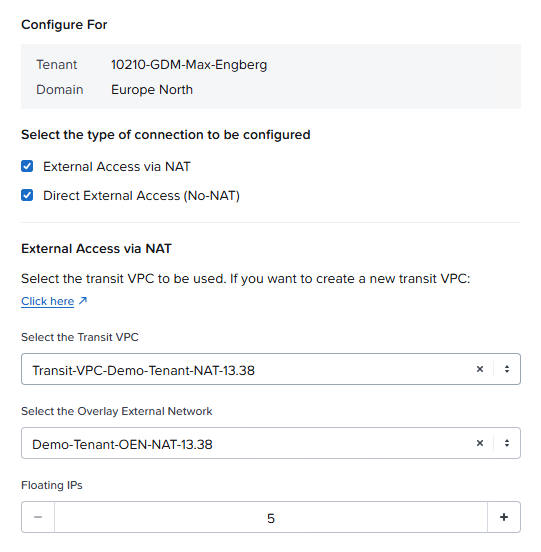
You'll notice a difference right away. Now we have the ability to assign the number of Floating IPs (FIPs). Let's give the tenant 5 FIPs.
Then we create the appropriate gateway/routing in our pfSense.
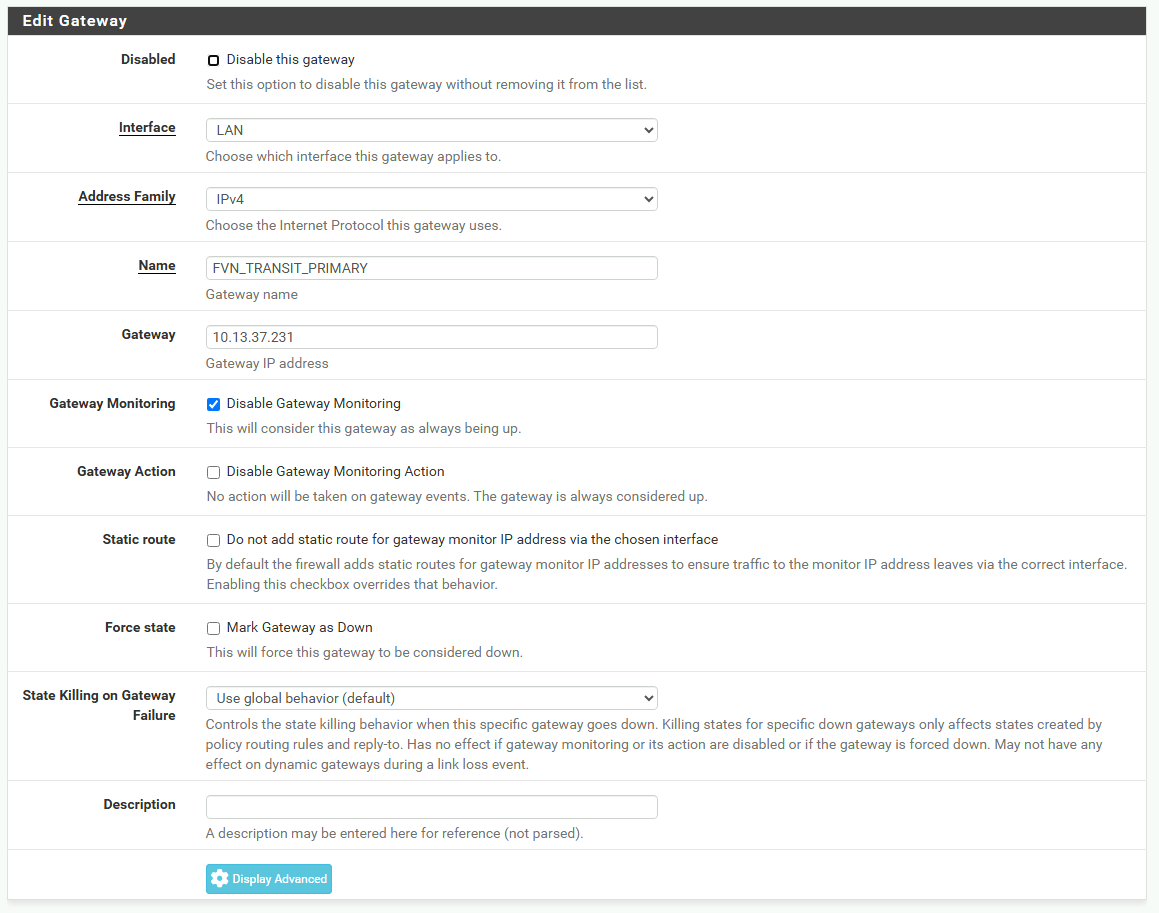
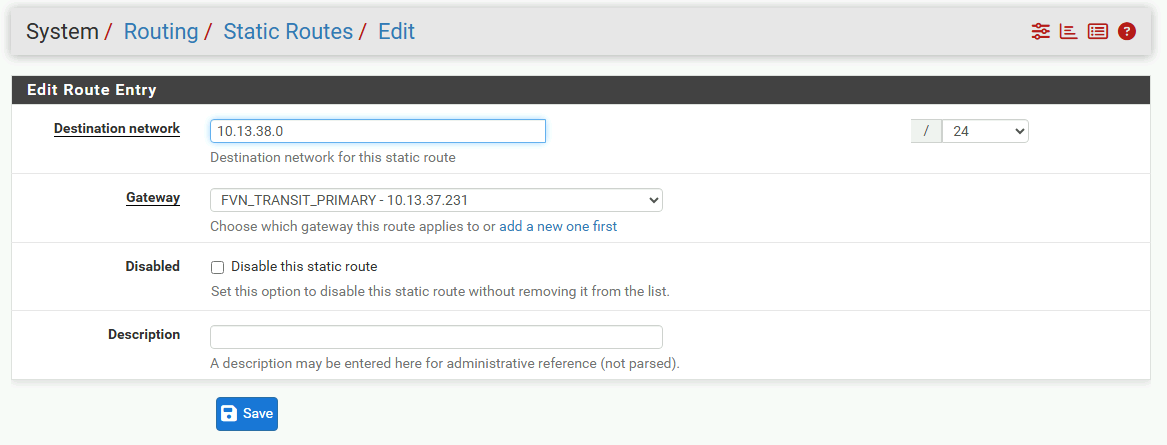
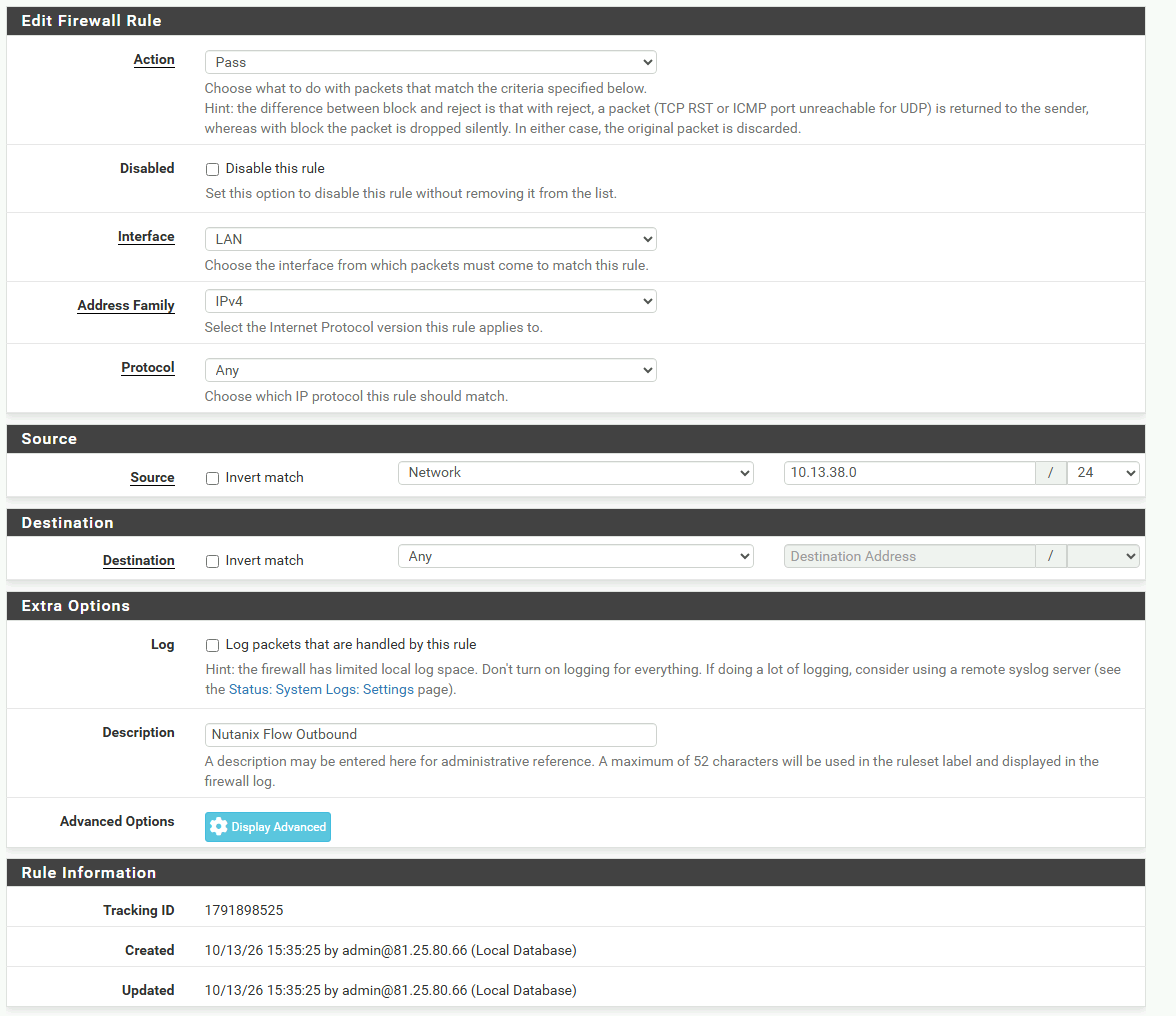
And we also create the firewall rule allowing 10.13.38.0/24 to access the Internet.
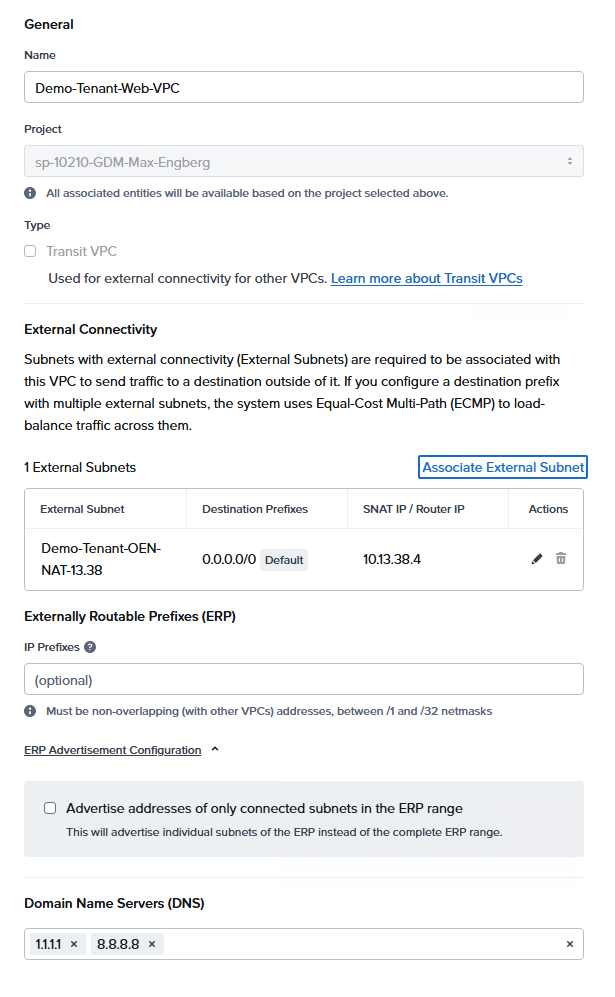
Now once again, log in as the tenant in SP Central. Now create a VPC for the tenant and connect it to the OEN we assigned in the step above.
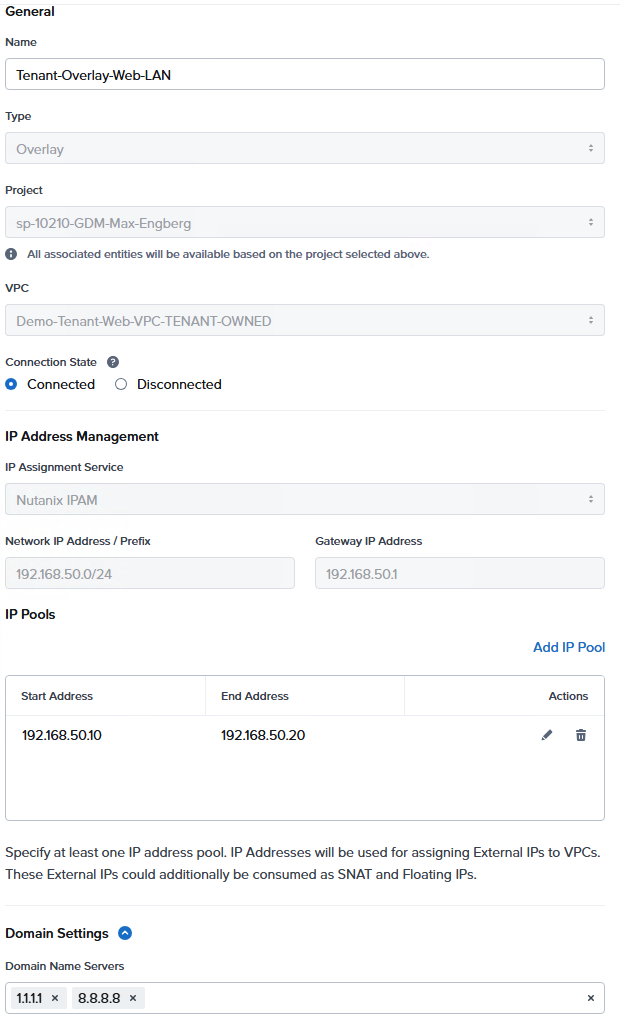
Then the tenant creates an overlay with whatever IP they like. In my case 192.168.50.0/24.
Then the tenant connects a VM to the overlay network created.

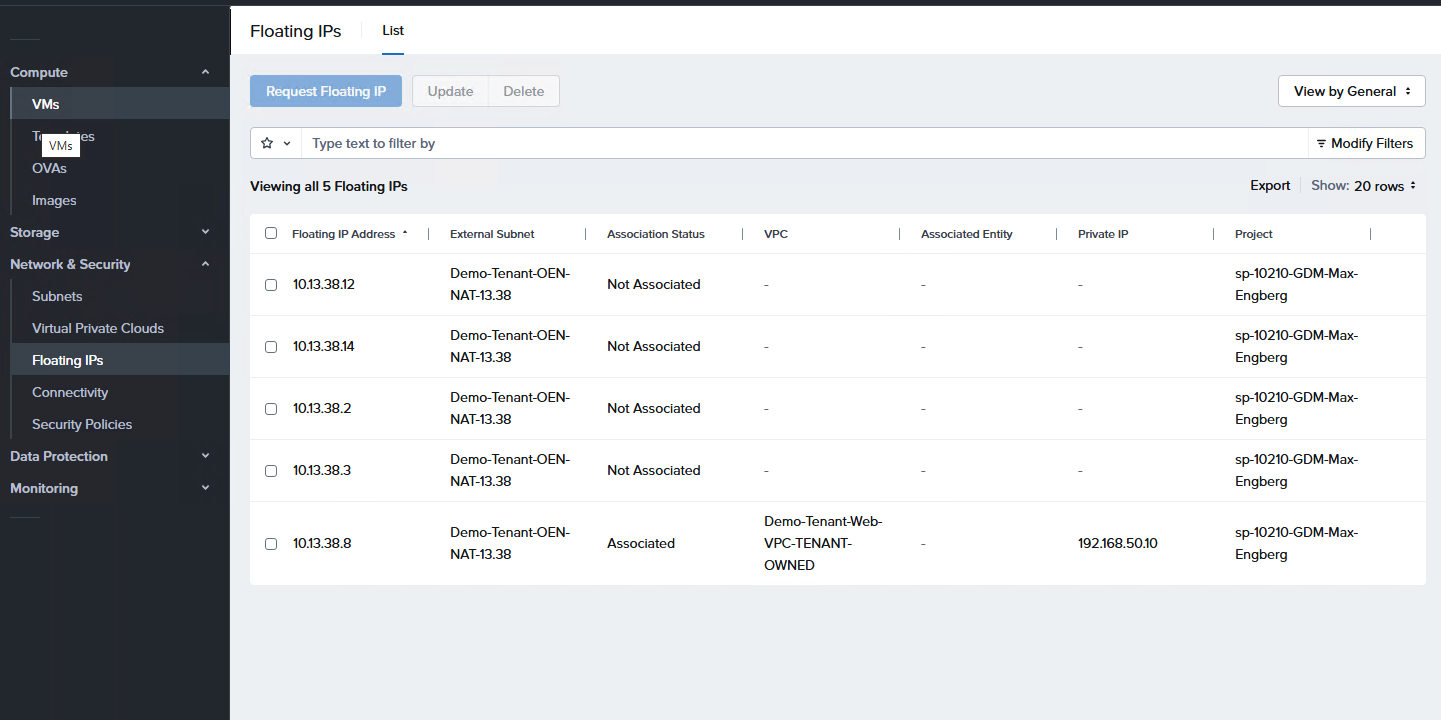
Now we can take a look logged in as the tenant. Click Networking & Security -> Floating IPs. The user has now been randomly assigned IPs in the OEN. Let's assign .8 to the IP 192.168.50.10, which was assigned to the VM.
Then let's do a traceroute from the VM.
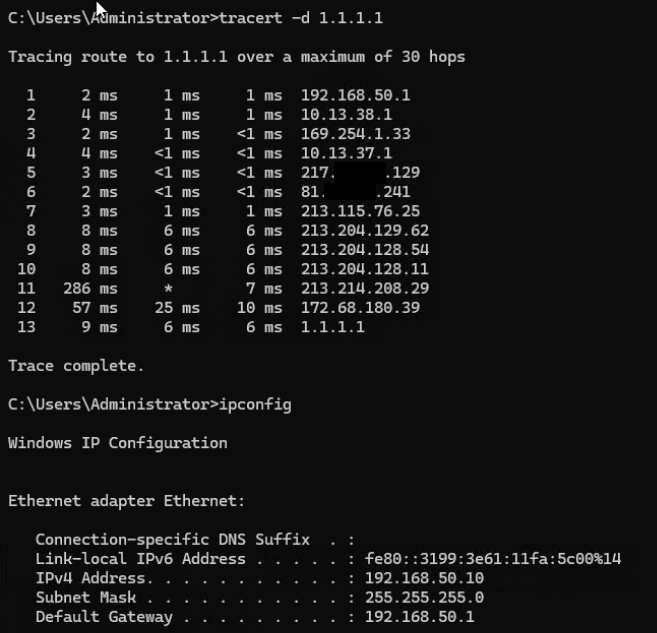
As you can see, we're now translated out towards the provider's infrastructure as a 10.13.38.x IP.
We can also create a port forward in pfSense to the .8 IP.

Jonass-MacBook-Pro:~ joho$ nc -zv 217.xx.xx.142 8443
Connection to 217.xx.xx.142 port 8443 [tcp/pcsync-https] succeeded!
Conclusion
So now we have covered the no-NAT and NAT scenarios. In this specific case we chose to run a pfSense and private 10.13.38.x and 10.13.39.x address spaces. In a production scenario you would use real prefixes/IPs that are routable on the Internet.
And of course, there should maybe not be a pfSense that's responsible for the routing. Since the Transit VPCs have support for BGP, you can connect your Internet routers directly to the Transit VPCs through the external connection VLAN (1337 in this example).
The NAT scenario is nice for easier web services, while the no-NAT scenario is awesome, for example, if the tenant wants their own virtual firewall appliance etc.
Hope you have found this blog post series helpful and that this post can help you figure out all the different networking parts of things :)
Until next time.